What you need first
- The address of your server, for example
cloud.example.com. - With Nextcloud and ownCloud, an app password (Personal settings → Security). With your normal account password PaperPeace is many times slower; with two-factor authentication an app password is required anyway.
- An account that may read and write in the folder.
WebDAV is one of the storage locations that require the purchase. The prices are on the home page.
The steps
-
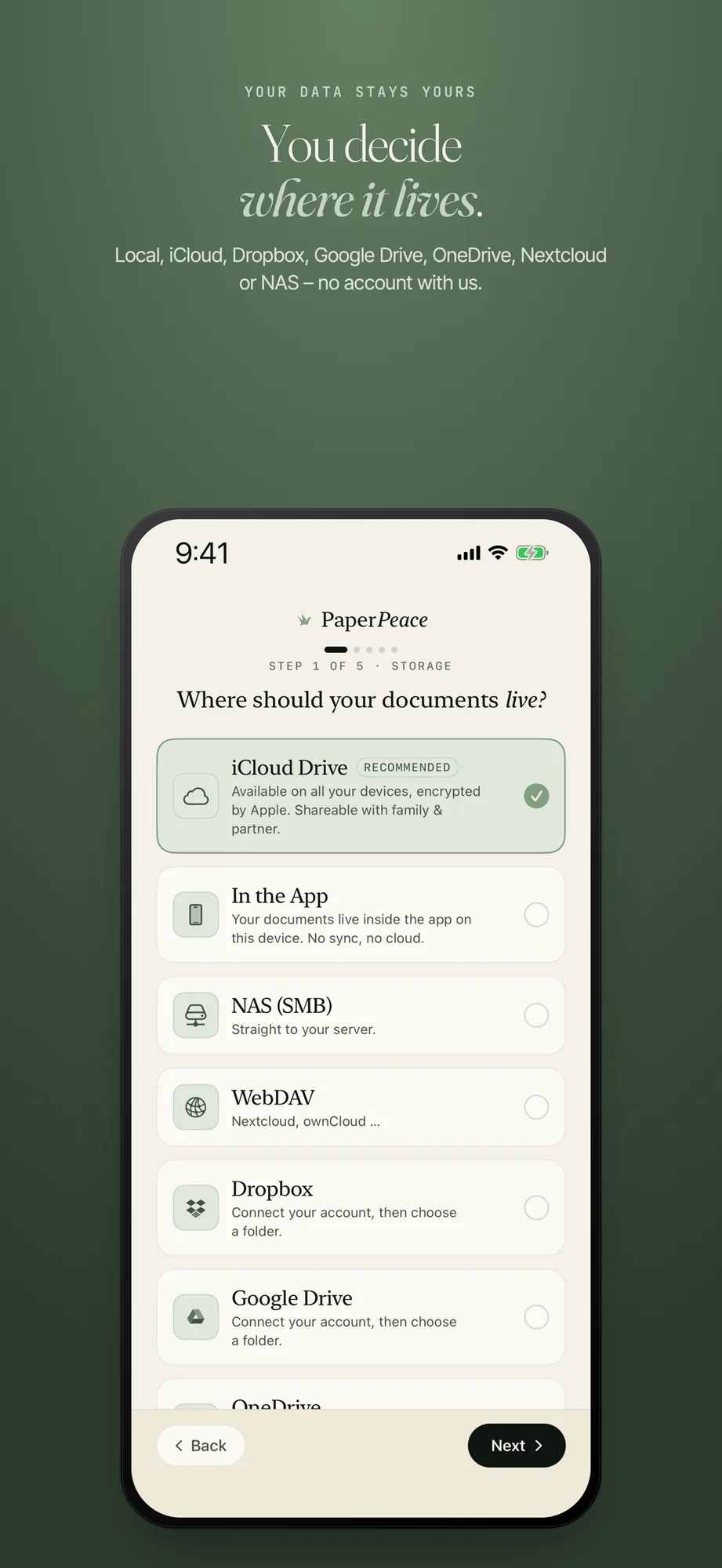
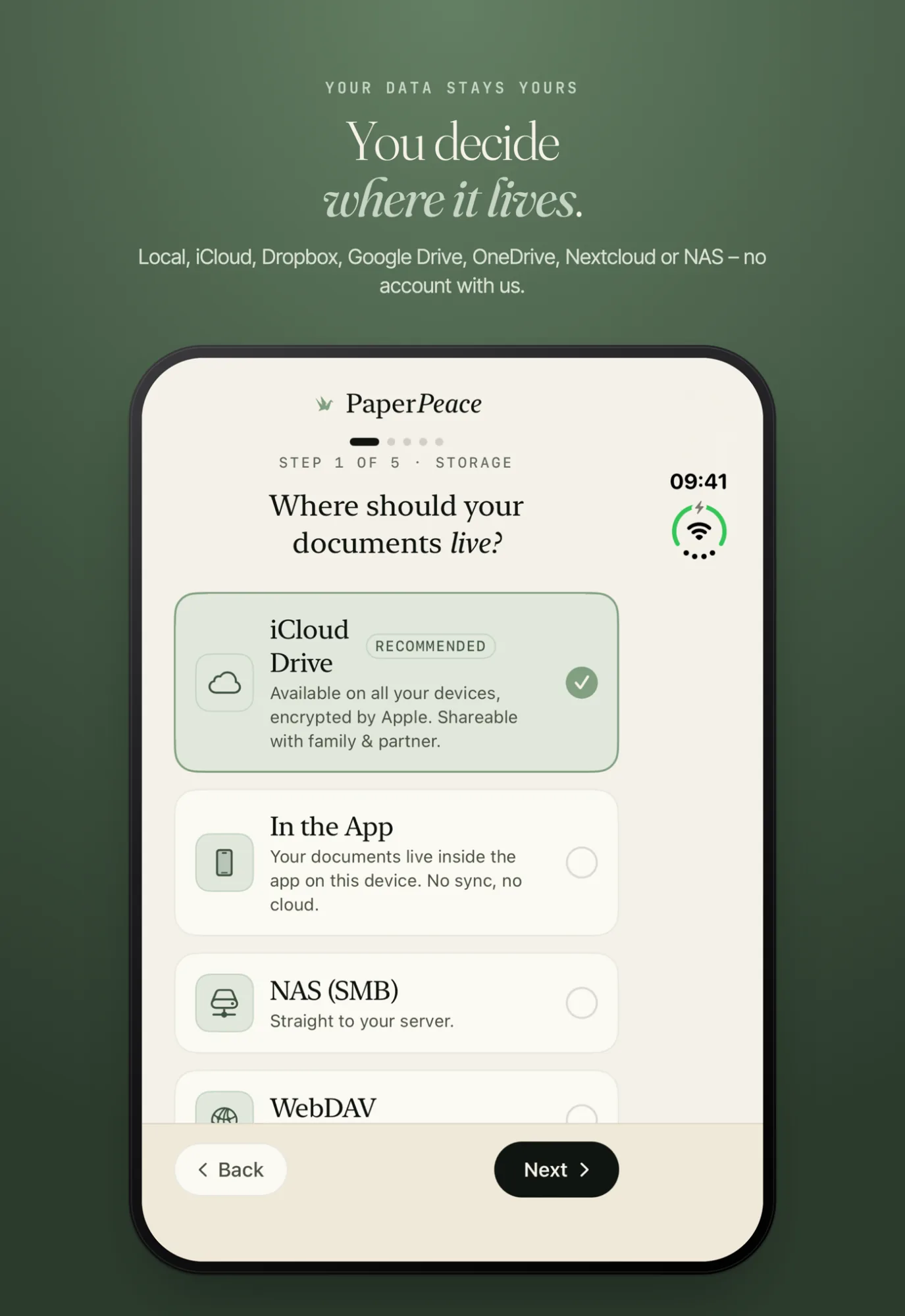
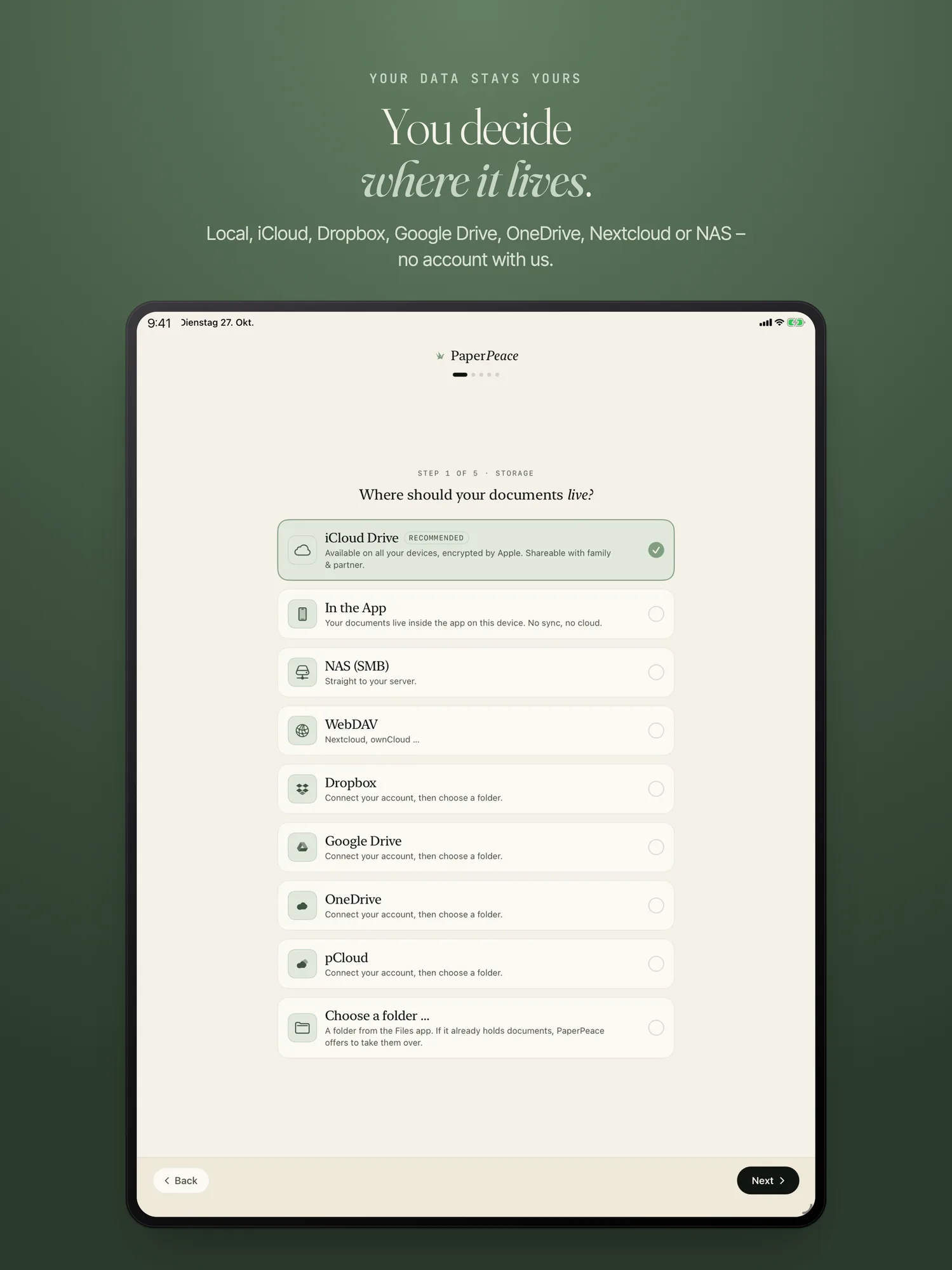
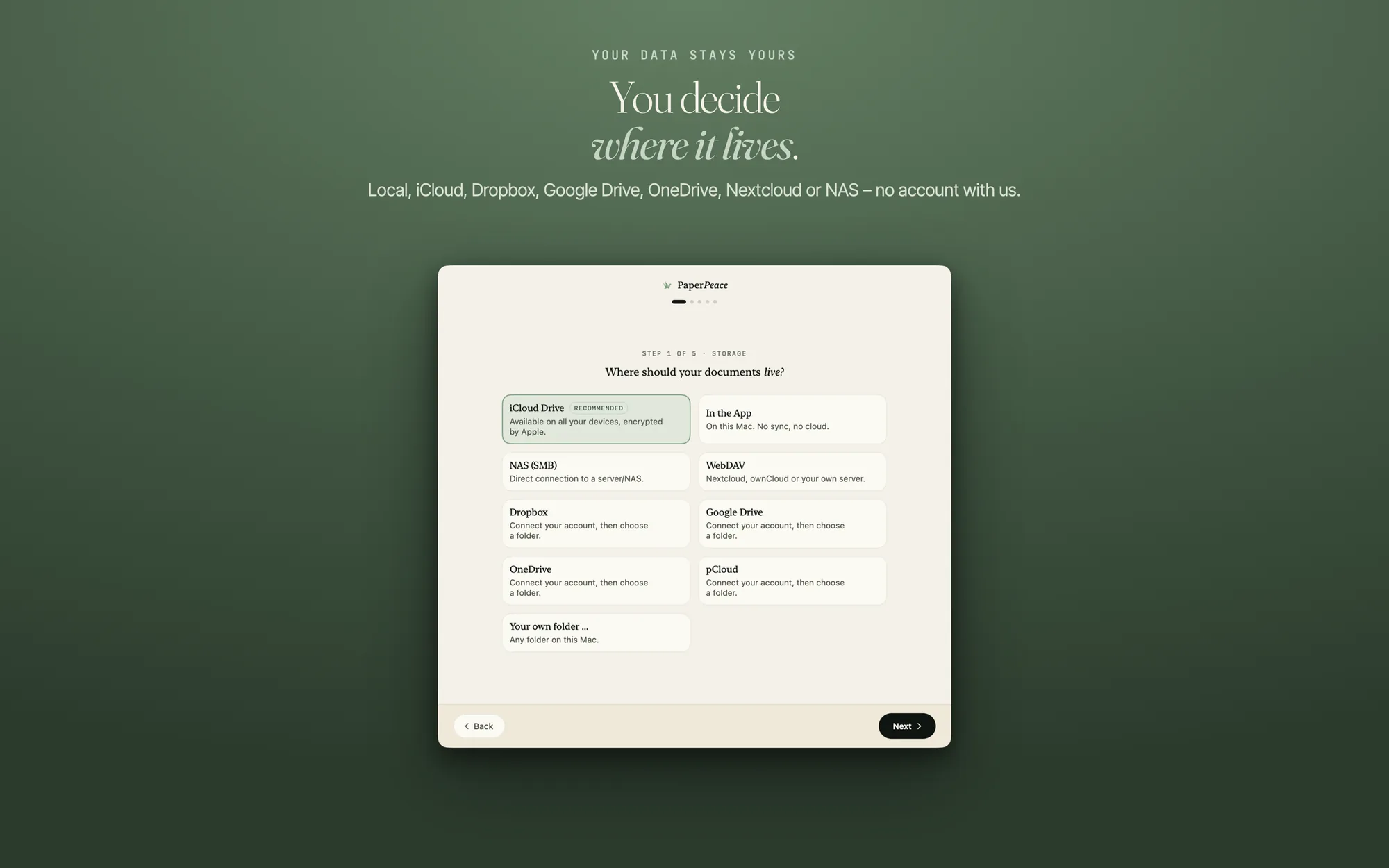
Open the storage choice
During setup this is “Step 1 of 5 · Storage” (see First steps). Later, go to Settings › Storage › “Add storage location” (on the Mac: Settings › Storage location).
-
Choose the “WebDAV” card
The card stands for Nextcloud, ownCloud or your own server. It opens the form “Connect WebDAV”.
-
Choose the server type
The “Server type” menu offers “Nextcloud”, “ownCloud”, “ownCloud Infinite Scale” and “Other server”. The type decides what the form asks for.
-
Enter the address
Nextcloud and ownCloud: You enter only your server’s address, for example “cloud.example.com”, with “Port” if needed. PaperPeace builds the rest of the WebDAV address itself. Above the address field you choose “https://” or “http://”; “https://” is preselected.
ownCloud Infinite Scale and “Other server”: These types have no fixed address form. You enter the complete WebDAV address under “WebDAV address” and the path (for example “/remote.php/dav/files/user/”) in the field below it. Copy both from your server’s settings.
-
Sign in
Under “Sign-in” you enter “Username” and “Password”. With Nextcloud and ownCloud, use the app password. Your credentials are stored encrypted in your device’s keychain, and PaperPeace connects directly to your server, without a detour through our systems.
-
Connect and choose the folder
Tap “Connect”. Then you choose the folder your library should live in and confirm with the button that names the folder. PaperPeace checks whether it may write there. If you choose the main folder, the app asks once more (“Use the main folder as your library?”); a folder of its own is usually the better choice.
Unencrypted and certificates
If you choose “http://”, the app warns you: the password goes over the network in plain text with every request, which is acceptable on your own network and not over the internet. Use “https://” whenever you can.
If the app cannot verify your server’s certificate because it is self-signed or expired, a switch “Accept this server’s certificate anyway” appears. It applies to this one server only. A valid certificate is safer, for example through Let’s Encrypt.
If it does not work
- “The username or password was rejected.” If two-factor authentication is on for your account, you need an app password instead of your normal one.
- “The server did not accept the address as a WebDAV folder.” For Nextcloud it has to end in
/remote.php/dav/files/YOURUSER/. You will find it in Nextcloud under “Files” → settings → WebDAV. - “No WebDAV server answered at this address.” Check the switch above the address field: maybe “https://” is selected even though your server only speaks “http://”, or the other way round. Also check that you entered the WebDAV address, not the address of the web interface.
- “The server could not be reached.” Check the address and your internet connection.
More on Nextcloud and the other storage options: Storage locations & sync.
Write to us through the contact form. The more exactly you name the step and the message in the app, the faster we find the cause.