Moving over from Paperless-ngx
PaperPeace fetches your documents straight from your running Paperless-ngx server, along with the organising work you put into them. On iPhone and iPad, open the import menu, choose “From another document management system…” and then “Import from Paperless-ngx”. On the Mac, use “Import from another DMS…” in the File menu. When you first start the app, choose “Migrate from Paperless-ngx” during onboarding.
-
Create an API token in Paperless-ngx
Sign in to the web interface, click your profile icon at the top right and choose “My Profile”. Under “API Auth Token”, use the button next to it to create a token and copy it. Instead of the token you can also enter a username and password in PaperPeace.
-
Enter the address and token in PaperPeace
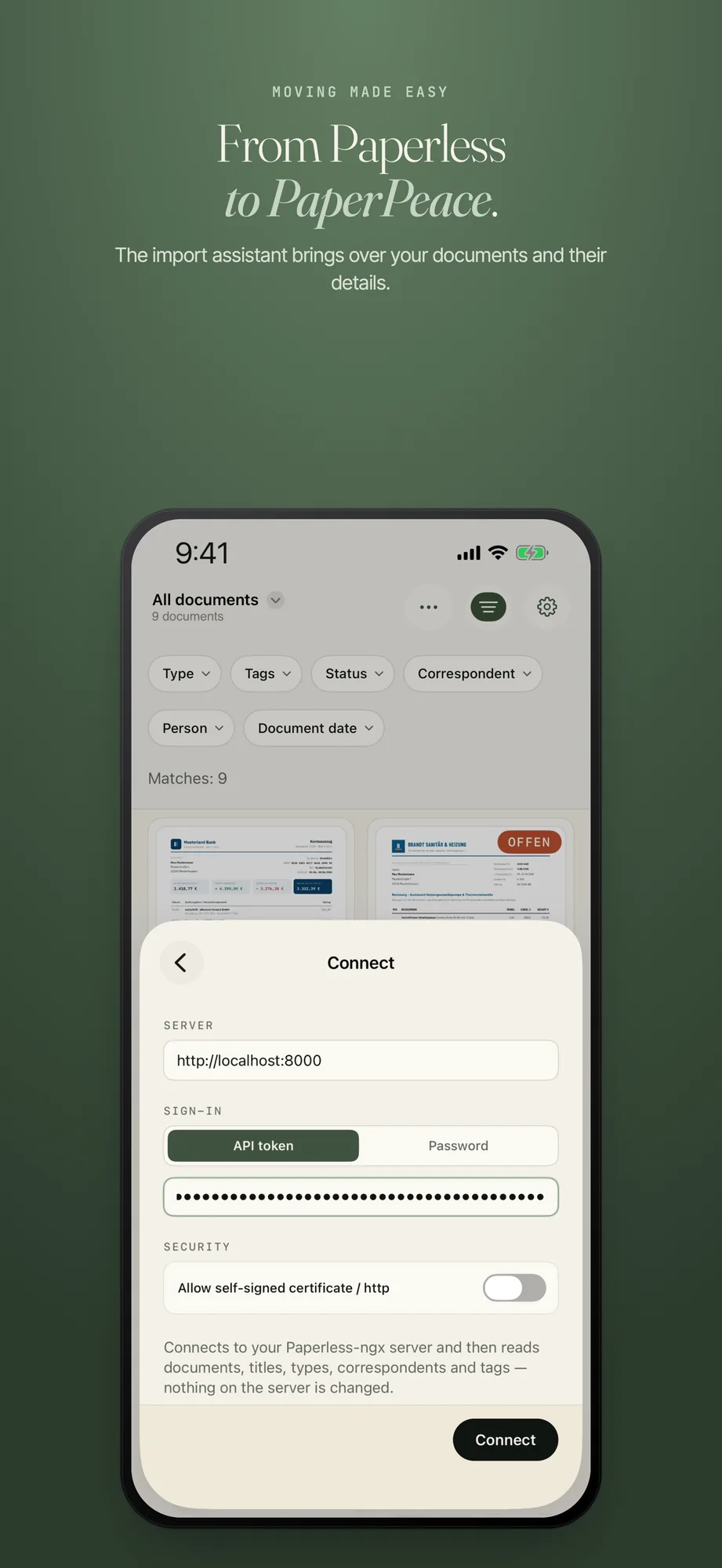
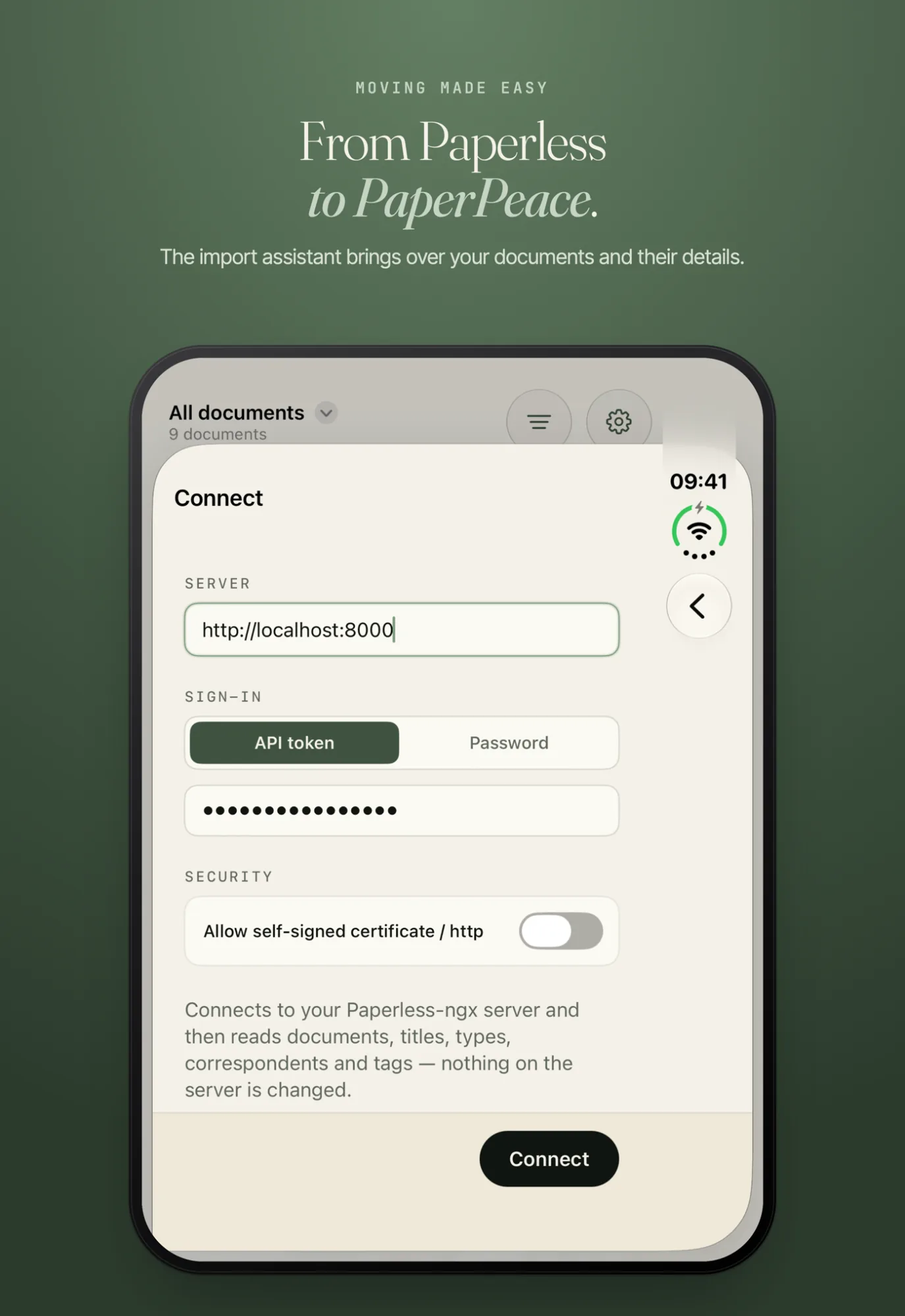
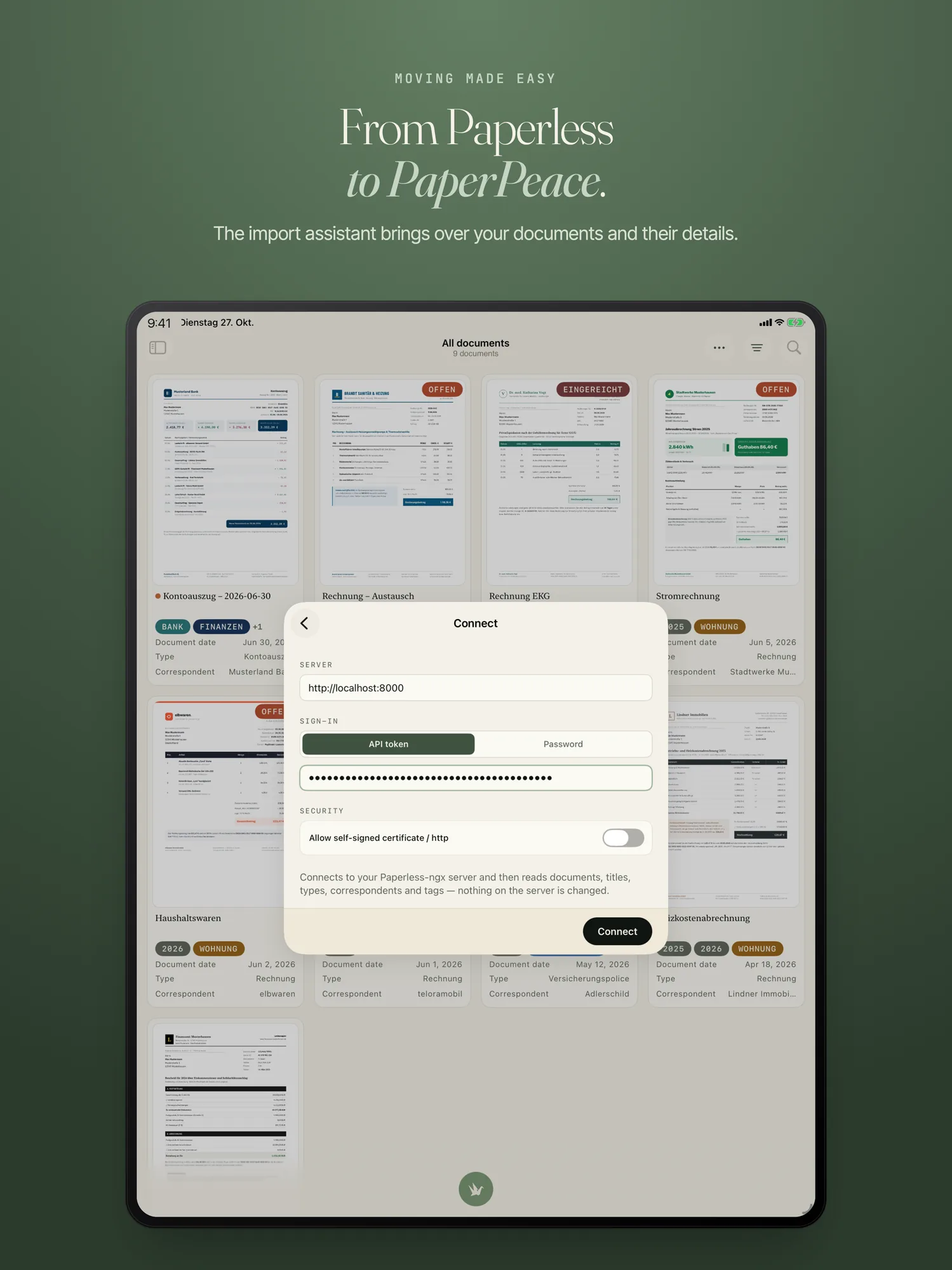
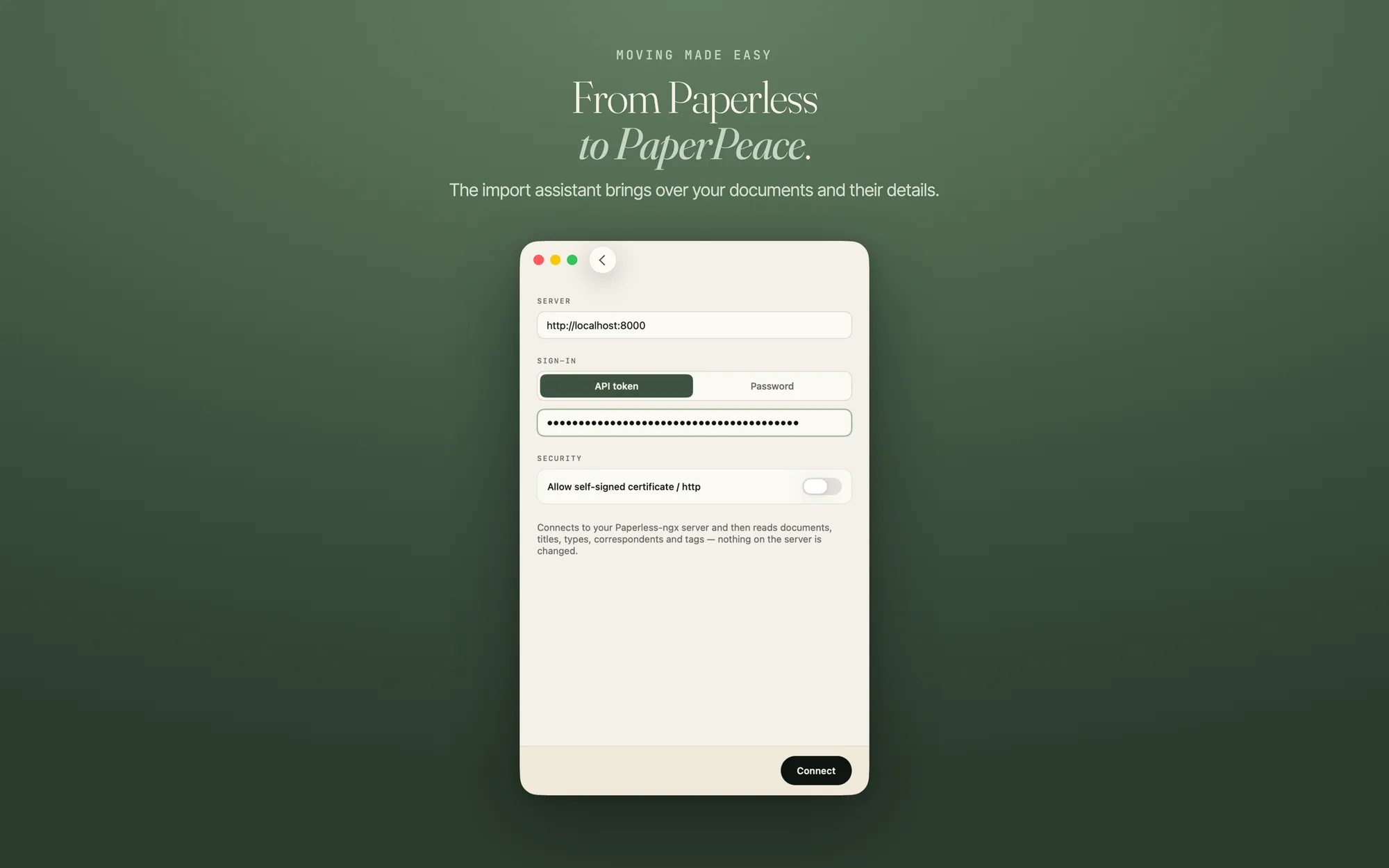
Under “Server address”, enter the address where you reach Paperless-ngx, for example
https://paperless.example.com. Under “Sign-in”, choose “API token” or “Password” and enter the token or your credentials. With “Connect”, PaperPeace checks the connection and shows how many documents it found on the server. -
Start the import and carry on
“Start import” sets it off. You can close the window: the import keeps going, and a banner in the library shows “Paperless import: n of N” with a “Cancel” button. After a restart of the app it carries on without duplicate documents. The searchable text layer is built in the background.
If your server uses a self-signed certificate or plain http, there is a switch under “Security”: “Allow self-signed certificate / http”. The app points out that other devices on the same network could read your API token, and says this is only suitable for trusted, private networks.
What comes across, and what does not
This comes across:
- The document itself: the searchable archive version if Paperless-ngx has one, otherwise the original file.
- Title, correspondent, document type and tags, with the tags’ colours.
- Both dates: the date on the document and the time you filed it. Your filing history stays intact.
- The archive serial number and your notes.
- The values of your Paperless-ngx custom fields. They appear as “Field name: value” lines in the document’s note, not as custom fields of their own.
This does not come across: anything not listed above. That includes, for example, user accounts and permissions, workflows, saved views and Paperless-ngx’s mail rules. You set up the email import in PaperPeace anew.
When the run is over, a report is ready (“Open report”). It counts how many documents were found, how many arrived (“Imported”), how many were there already (“Imported earlier”), which were held back as “Duplicate detected” and which are “Not imported”, with a reason and the title for each document. A document with the same content as one you already have is not filed a second time.
The import is a one-way street: PaperPeace reads from your server and changes no documents and no details about them there. There is no ongoing sync. Your documents in Paperless-ngx stay as they are; you can keep it running alongside and only switch it off once you are sure everything arrived. The API token is stored in your device’s keychain. “Delete saved credentials” removes the address, token and password from this device again; nothing changes on the server.
Moving over from DEVONthink
PaperPeace has no direct connection to DEVONthink. The way over is a folder.
-
Export from DEVONthink
Choose the database in the sidebar, select the contents and use DEVONthink’s export to files and folders (in the German version: Ablage → Exportieren → Dateien und Ordner). DEVONthink writes the groups as folders and the documents into them in their original format. If you only indexed files, skip this step: the files already sit in the Finder.
-
Check the folder
Take a quick look that everything is there. PaperPeace accepts PDFs, images, text, Word and other formats, but not HTML files, web archives or CSV files. The list is on Getting documents in. Save such content as PDF first, or leave it in DEVONthink.
-
Import into PaperPeace
On iPhone, iPhone Duo, iPad and Mac, choose “Import Folder…” in the import menu. On the Mac it is under File → Import… (⌘O). PaperPeace takes the folder with its subfolders and runs every file through the same recognition as a fresh scan.
Keep DEVONthink running until you have checked that everything important arrived.
Any other way: folder or ZIP
For any other system the same rule applies: export the documents as files into a folder or a ZIP archive. Then choose “Import Folder…” or “Import Archive…” in the import menu. PaperPeace unpacks a ZIP archive automatically and takes every file in it whose format it knows. How all the ways in work is on Getting documents in.
The import from Paperless-ngx is one of the always-free features. Prices are on the home page.
Frequently asked questions
Can I bring my data over from another DMS?
From Paperless-ngx, PaperPeace fetches your documents straight from the server, with titles, correspondents, document types and tags, so you do not start from zero. From other systems you export the documents as files into a folder or a ZIP archive and import them from there; for DEVONthink this page describes the way step by step.
Does the import change anything in my Paperless-ngx?
No. PaperPeace reads from your server and changes no documents and no details about them there. There is no ongoing sync between the two systems either.
What happens if the import is interrupted?
It keeps going, even if you close the window. After a restart of the app it carries on without duplicate documents.
How do I know whether all documents arrived?
When the run is over, “Open report” opens the report. It lists how many documents were found and what happened to each: imported, already there, held back as a duplicate or not imported, with a reason and the title.
Your storage, your order
PaperPeace runs on iPhone, iPhone Duo, iPad and Mac.
iPhone · iPhone Duo · iPad · Mac · iOS 18 and macOS 15 or later