Your folders stay, new documents follow rules
If you point PaperPeace at a folder that is already sorted, it asks once what should happen. With “Adopt & keep structure” every existing document stays where it is. After that, under Settings › “Filing & Naming”, you create as many named rules as you need, for example “Taxes” by correspondent and year and “Receipts” by year and month. At the top is the “Default rule”: it applies to everything that has no rule of its own.
A new document gets the first rule from the top whose conditions all hold. You set the conditions with “Edit conditions …”; they are the same rows as in the advanced filter. You change the order by dragging, or with “Move up” and “Move down”. If a rule above catches everything another one would, the other shows “Hidden” with the name of that rule. A rule without a condition never applies by itself, but you can still assign it to a document by hand (“Set filing rule …”).
Filing by hand works too: “Move to …” in the context menu puts a document in a folder. It stays there, even if the correspondent or the rules change later. The editor shows “Manual” with the folder, and “Sort automatically again” is always available.
Write folder patterns and file names freely
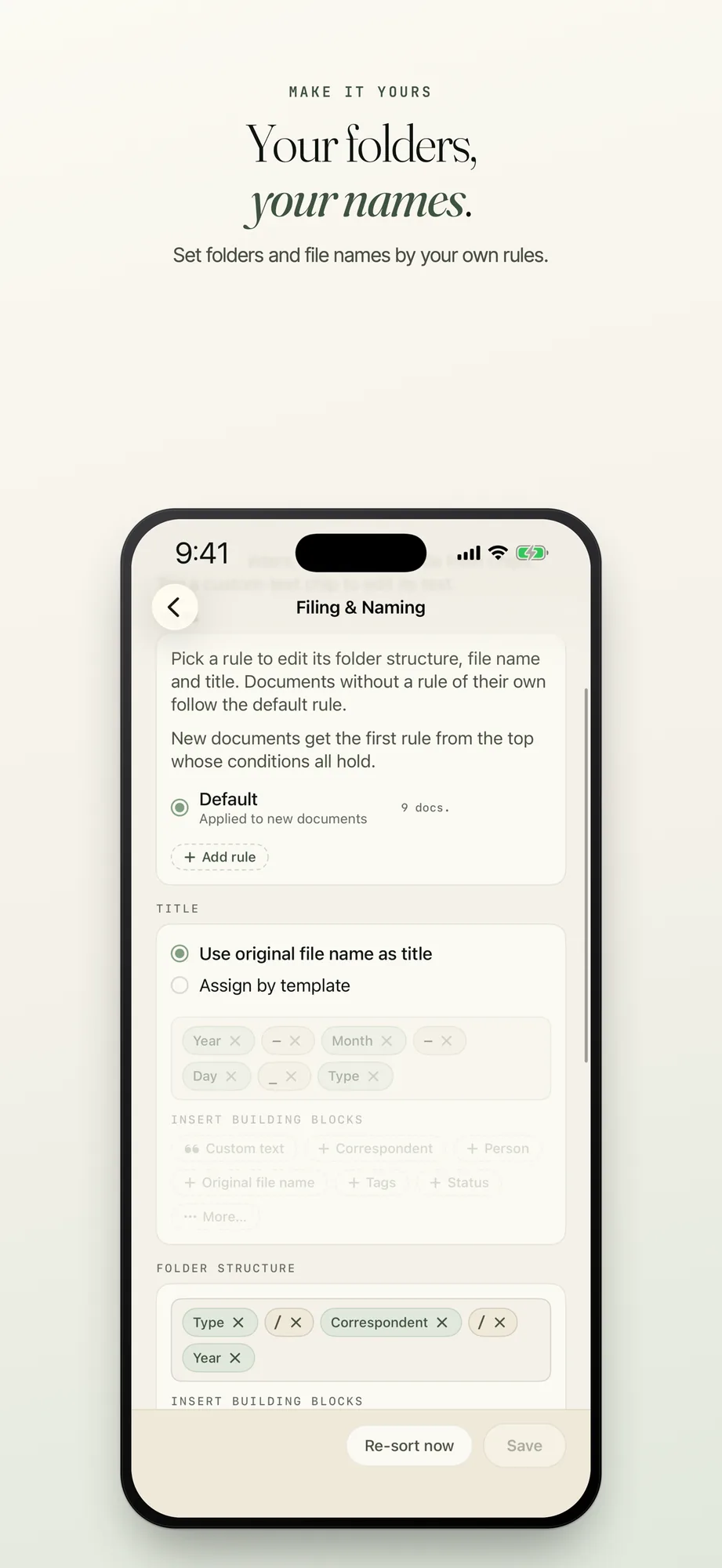
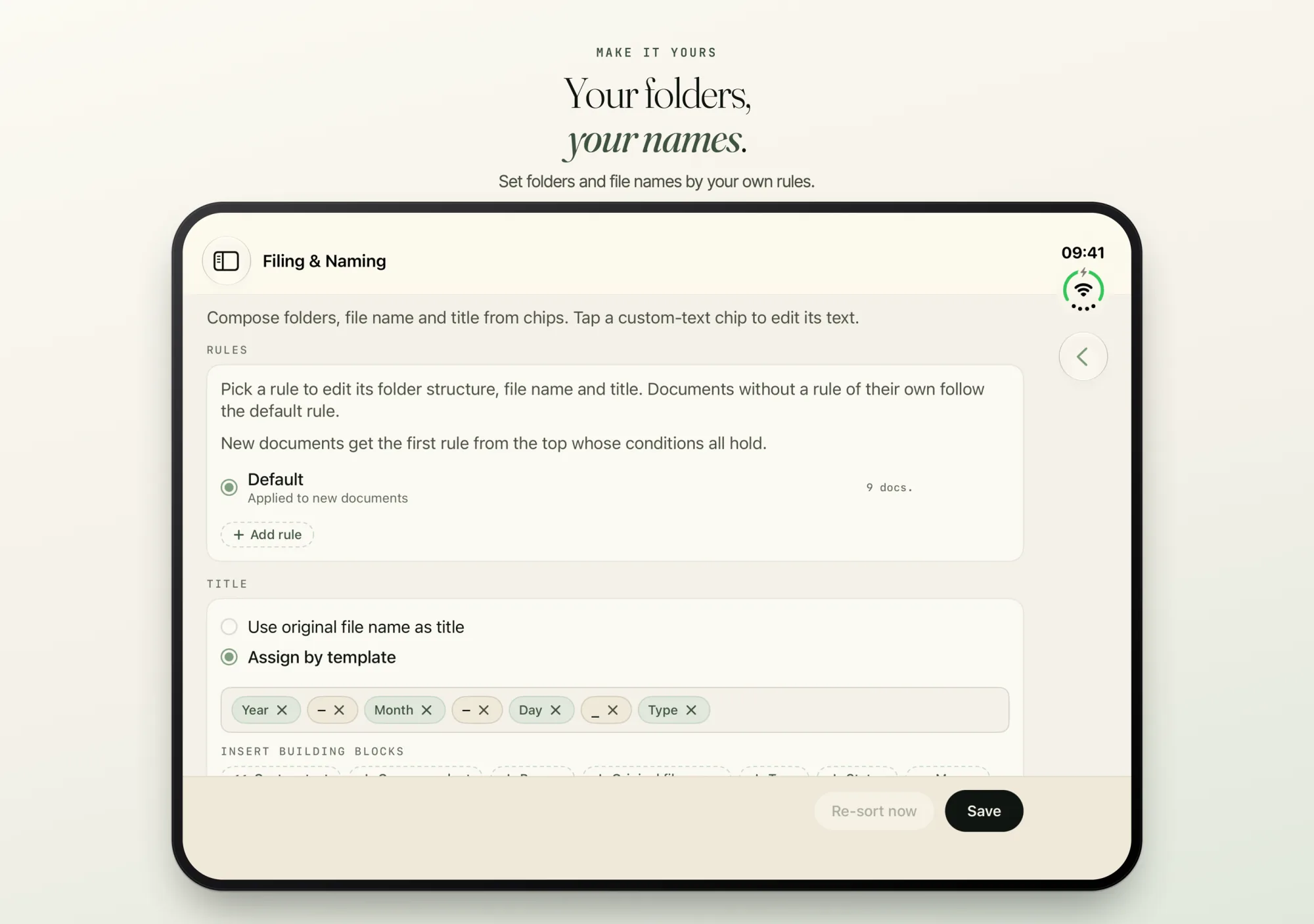
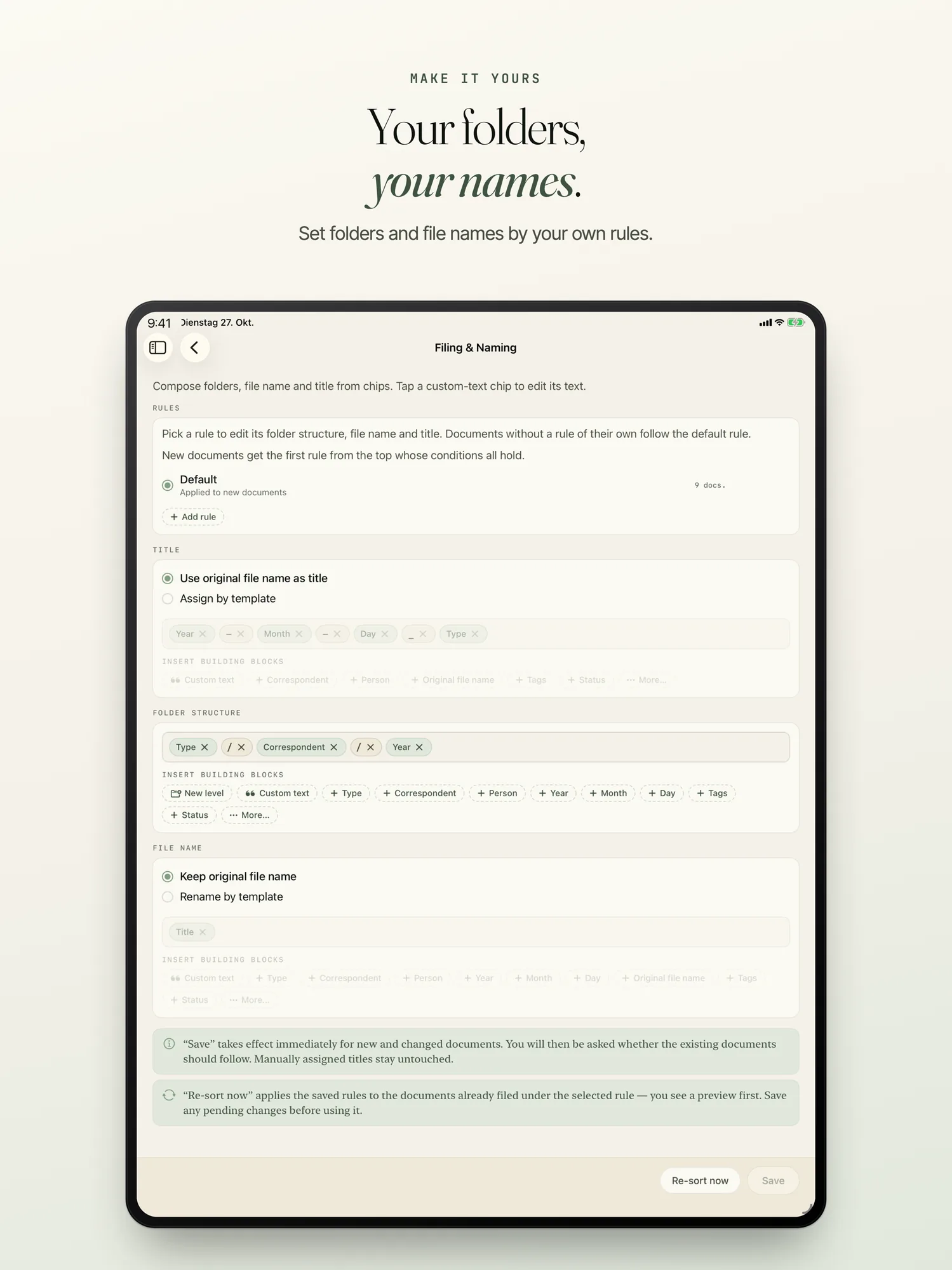
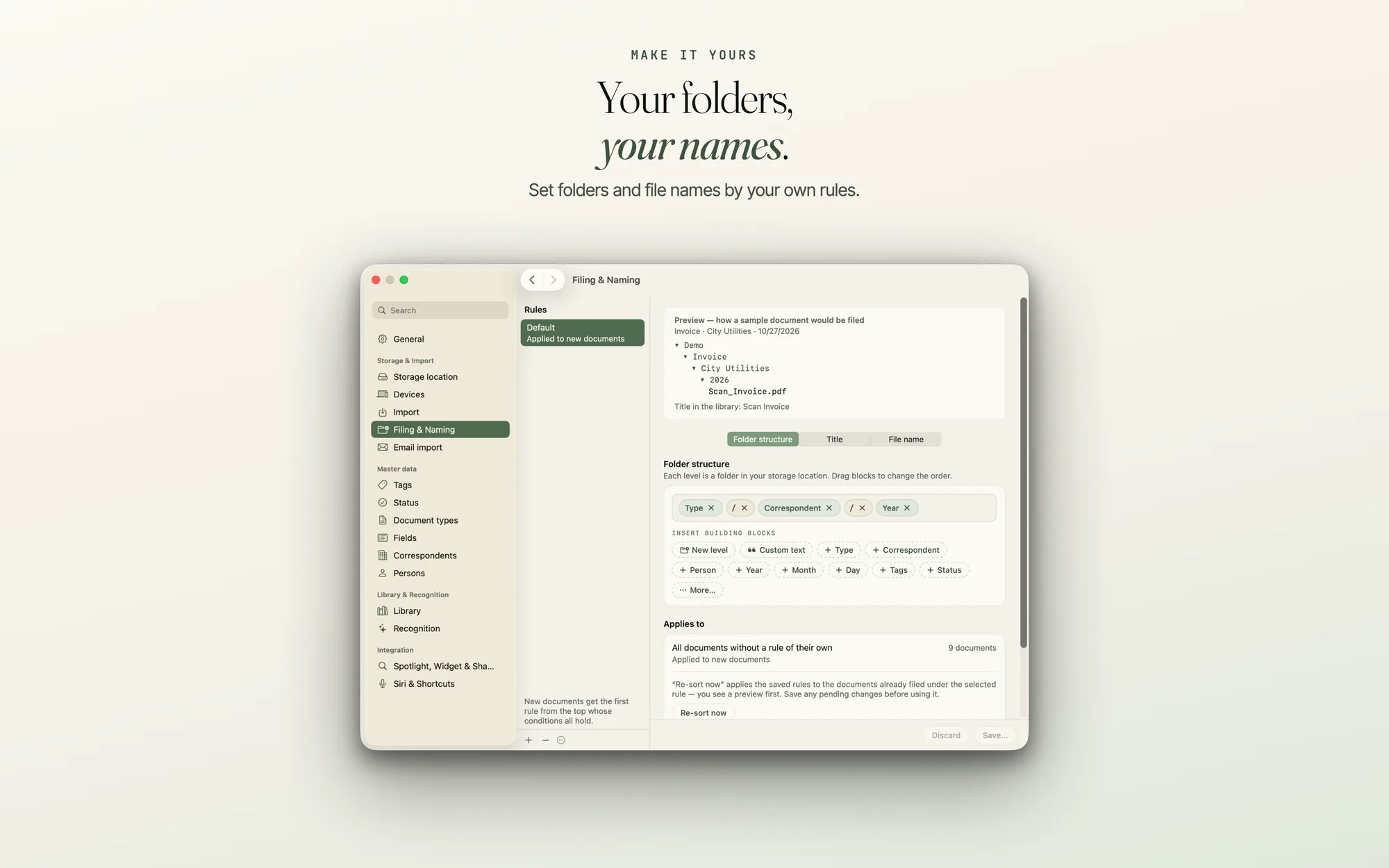
You build the folder pattern from building blocks: type, correspondent, person, year, month, day, tags, status and custom fields (“Insert building blocks”, more under “More…”). The blocks are chips you insert and drag; in between you type your own text as folder names. A level “Finanzen” with the levels type and year below it creates “Finanzen” literally, year and month in one level give “2026-03”. A pattern may have up to eight levels. With “Omit level when empty” a level disappears for documents without that detail, instead of creating a folder “Without …”. Without that mark, documents with no value land in the folder “Without <name>”.
Title and file name get a template from the same building blocks, each in its own tab. A preview shows how a sample document would be filed before you save.
A changed pattern applies to new documents. What is already filed stays put until you choose “Re-sort now”: first you see a preview of everything that would be moved or renamed, and rule changes are listed apart from moves. Documents you filed by hand are left alone unless you tick “Also re-sort manually moved documents”.
Custom fields for what you file
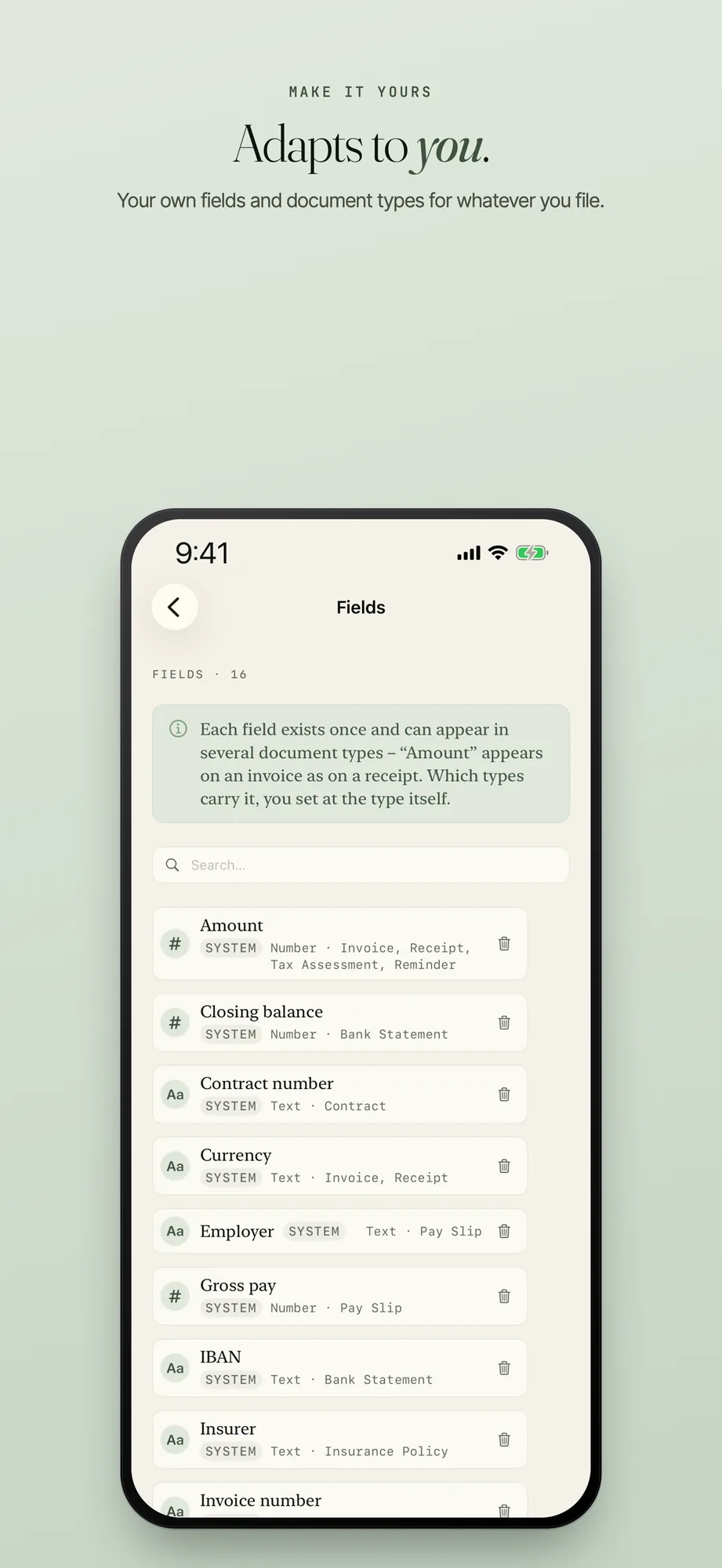
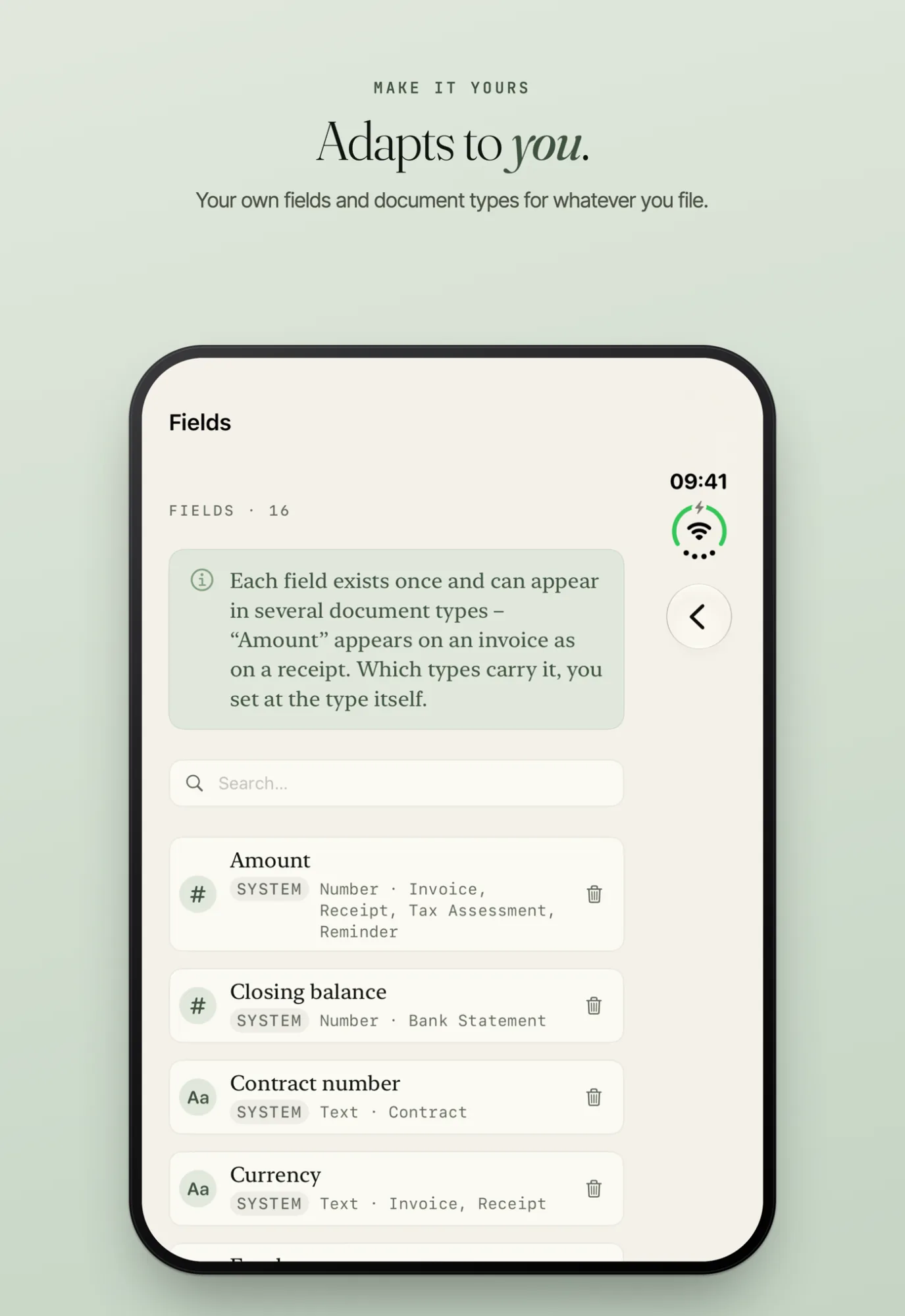
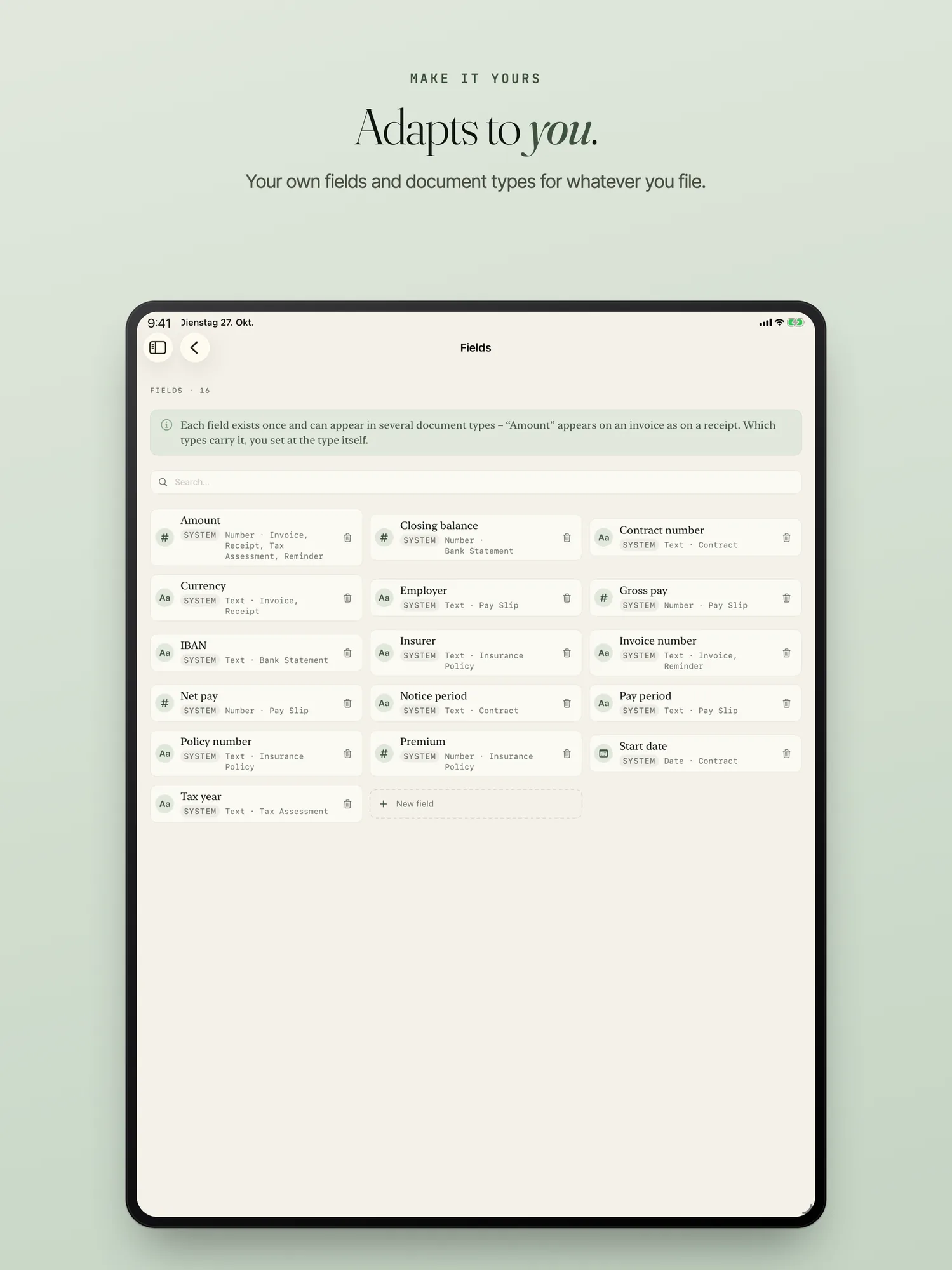
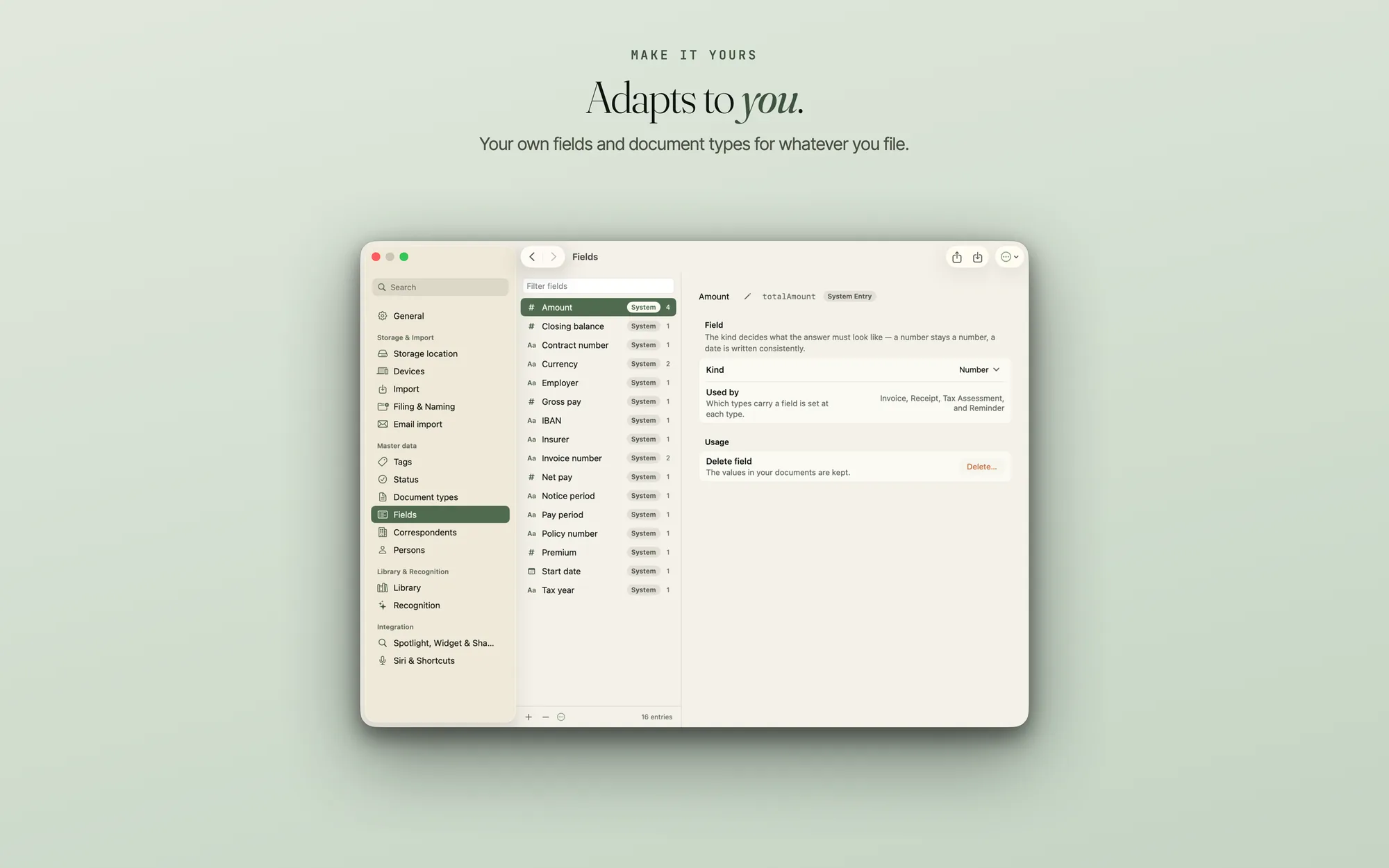
Under Settings › Master data › “Fields” you create details that belong to your documents, such as contract number, notice period or insurer. There are six kinds: Text, Number, Date, Yes/No and two lists, one with a single choice (“List (one choice)”) and one with several values (“List (several values)”), each with its own choices. A field has a name; if you delete it, the app first tells you how many documents have a value, and the values on the documents stay.
Under Settings › “Document types” you set a template per type: which fields a type has and in what order. In a document, the group “Custom fields” shows exactly those fields. More come in through “Add field”, where you can also create a new field on the spot. The values are kept in the document’s companion file (the sidecar) and arrive on your other devices.
Custom fields work in other places too: as a building block in the folder pattern and the file name, as a field in the filter and in the conditions of a filing rule. On devices with Apple Intelligence the app can additionally fill a field itself if you want. You switch that on at the field, in the tab “AI recognition”, with “Enable Apple Intelligence”; Recognition & privacy explains what stays on the device.
Pass on master data, export with a companion file
You export tags, statuses and document types, together with the keywords the recognition uses, to a file and pass it on, or you take over a file from someone else. On import you decide which kinds to take over and whether your master data is extended or replaced. Before that, numbers show what would happen. “Extend” never removes anything; before “Replace” the app asks a second time, because the entries on your documents disappear as well. The file holds the master data in plain text, including keywords the recognition found in your documents.
When you export documents you can include a list (CSV): all fields of a document and one column per custom field. In the ZIP your folder structure can be kept (“Keep folder structure”). Your documents lie as original files at your storage location anyway, in your structure.
Changing the folder and name template, and creating, renaming, ordering and deleting filing rules together with their conditions, is part of the purchase, as is filling a field with Apple Intelligence and password protection on export. Without a purchase you can see the template, and it keeps applying to new documents. Custom fields by hand and export with a list and folder structure are not tied to the purchase. Prices are on the home page.
Frequently asked questions
Can I keep my existing folder structure?
Yes. If you point PaperPeace at a folder that is already sorted, it asks you once what should happen. If you choose “Adopt & keep structure”, every existing document stays where it is. If you feel like spring cleaning later, you set a pattern from building blocks and choose “Re-sort now”. Before that you see a preview of everything that would be moved or renamed.
Does PaperPeace re-file existing documents when I change a pattern?
No. A changed pattern applies to new documents. Documents that are already filed are only re-sorted by “Re-sort now”, and a preview shows you what would happen first.
Does a document I filed myself stay where I put it?
Yes. A document you file with “Move to …” stays there, even if the correspondent or the rules change. “Sort automatically again” is always available.
What happens to the values when I delete a custom field?
The values on the documents stay. Before deleting, the app tells you how many documents have a value.
Your storage, your order
PaperPeace runs on iPhone, iPhone Duo, iPad and Mac.
iPhone · iPhone Duo · iPad · Mac · iOS 18 and macOS 15 or later