Intake: one place for everything that waits
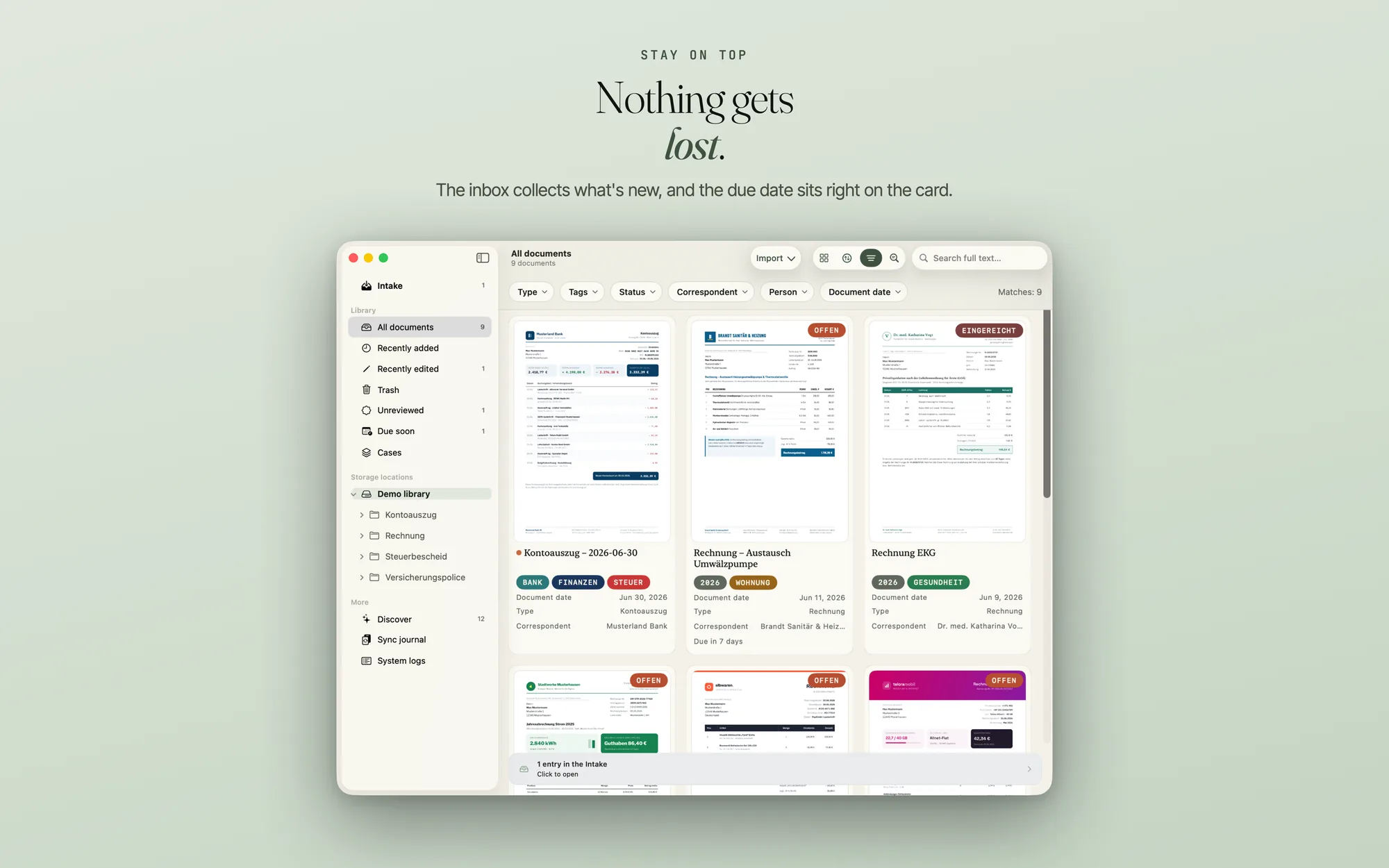
Intake holds what waits for your decision: shared files, files from watched folders, mail attachments, duplicates, locked PDFs, failed imports and failed analyses. It is a view of its own with sections such as “Import?”, “Decision open”, “Unlock”, “Analysis failed” and “Import failed”. On the Mac and the wide iPad it is a table, on the iPhone a list.
Every row has a thumbnail and opens a preview; on the Mac you can use the space bar. Every row can be discarded. The number on Intake counts only what you still have to deal with. A document waiting in Intake appears nowhere else: not in the list, not in search, not in the counts, in Spotlight, in widgets or in shortcuts. After your decision it appears in the library as usual.
A possible duplicate also waits there until you have decided whether it should stay. After an import, “Import finished” names the waiting duplicates and leads to the Intake.
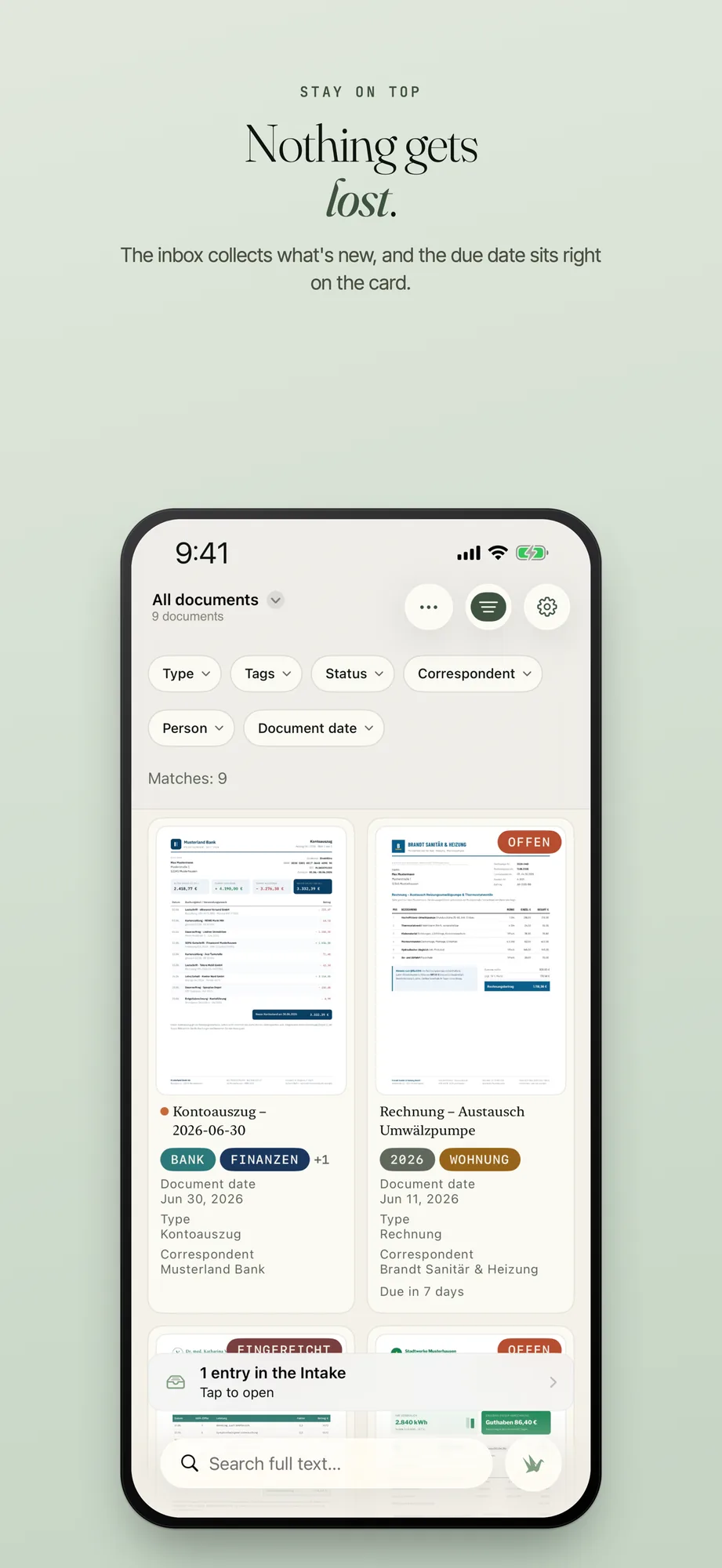
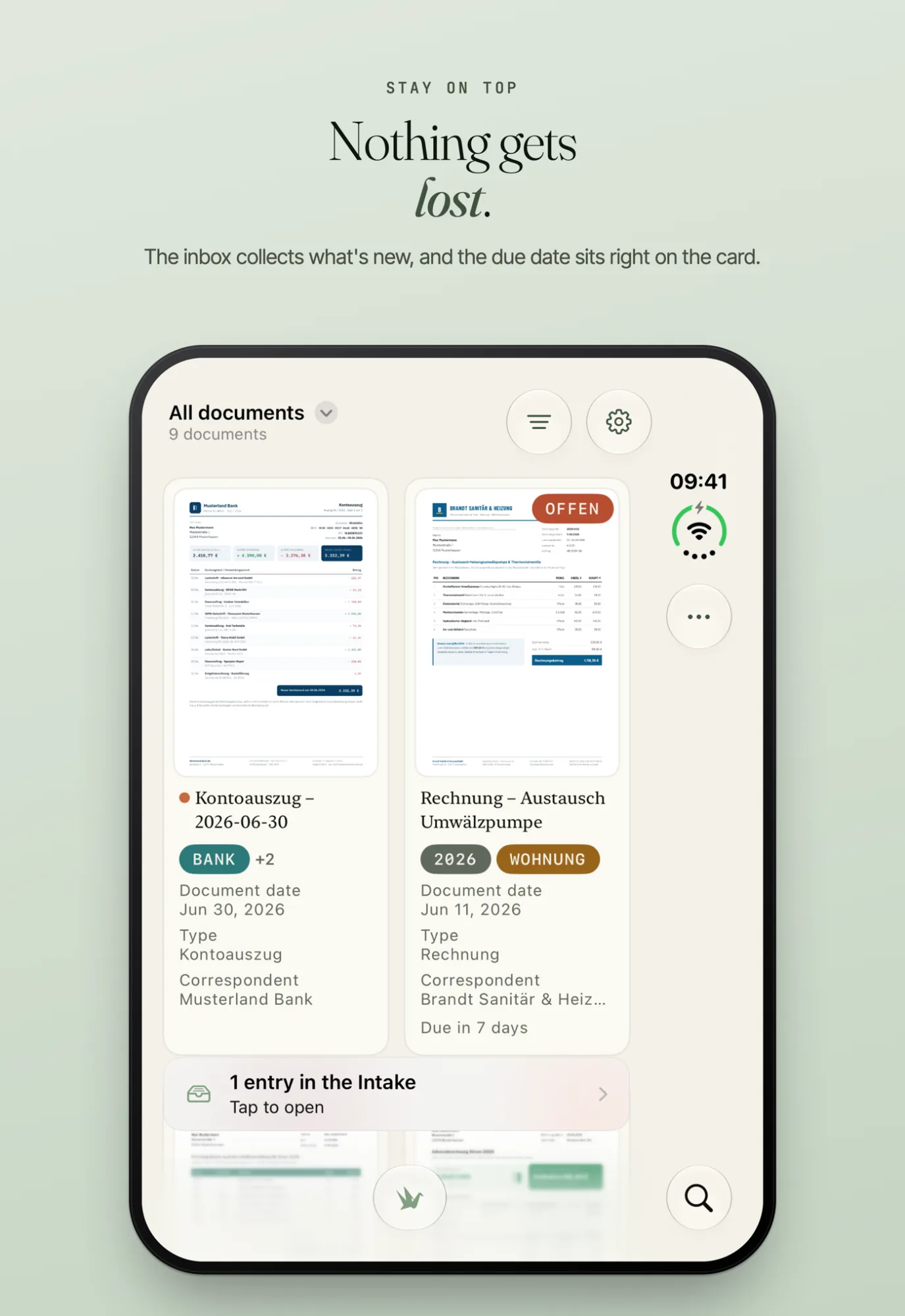
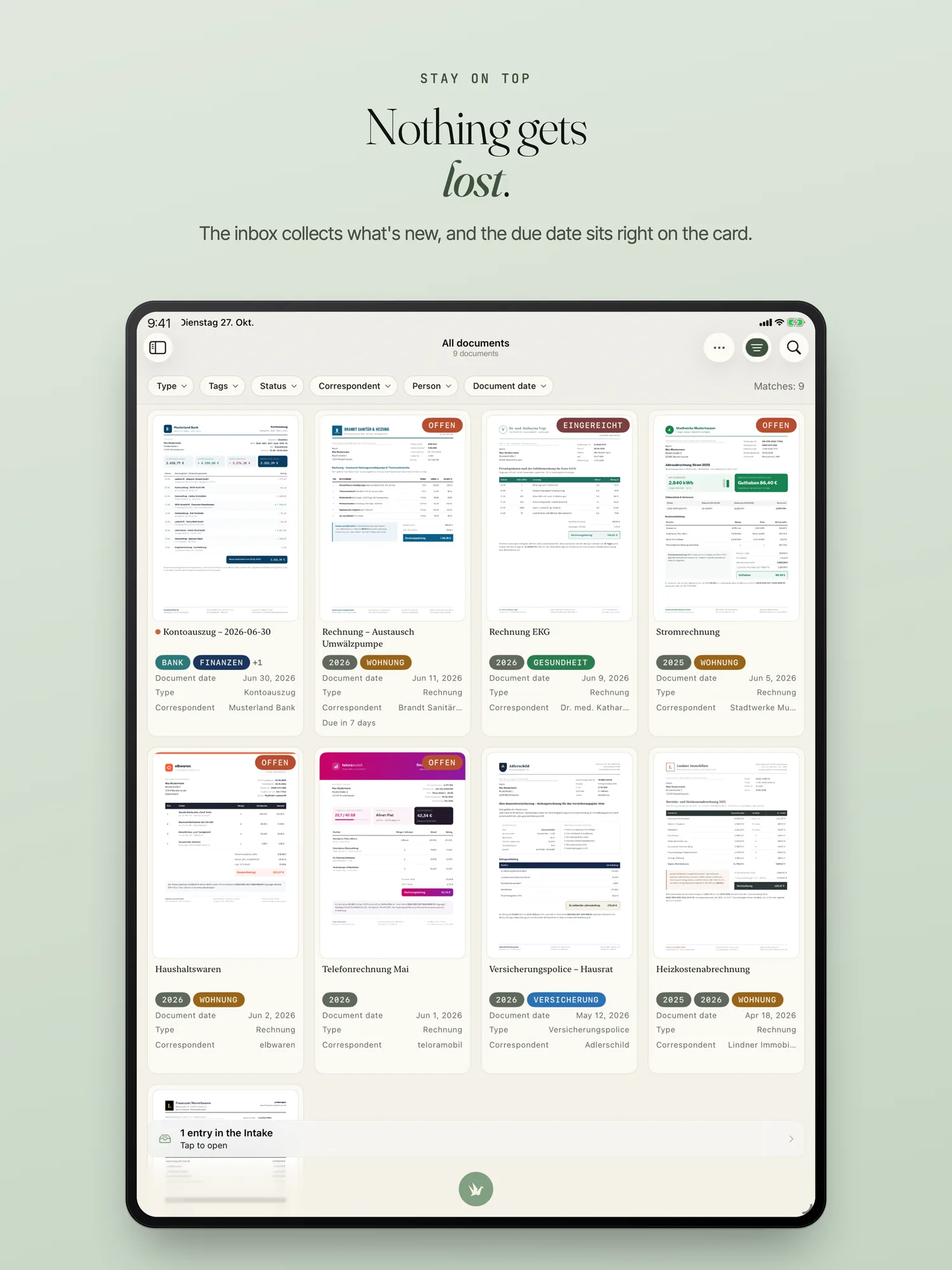
Mail attachments you want to check before import are in the section “Import?” with “Import” and “Discard”. “Review attachments” opens Intake on iPhone and iPad. When something waits for you, a note in the library gives the number (“1 entry in the Intake”) and opens Intake with a tap. Documents that could not be filed because the filing rule yields a folder name the storage location rejects are counted in a note too; a chip in the library shows exactly these.
Deadlines at a glance
Every document can have a due date, for example for an invoice or the notice period of a contract. On the card in “All documents”, the due date shows in days, and on a narrow card the short form “Overdue”. The day count moves on at midnight without you reopening the list.
You set a reminder independently of the due date. It applies as soon as it has a date, 09:00 by default; the quick choice offers “Today”, “Tomorrow” and “In a week”. With “Checked off” you take a document out of the due-date lists; the switch only appears once a due date is set. So you see at a glance what is due soon or already overdue, without opening anything. Pinned documents are in view as a widget on the Home and Lock Screen.
Cases: what belongs together, together
A case groups related documents, such as a quote and the invoice. You add them in the context menu with “Add to case …”, and a document can belong to several cases. Under “Cases” (sidebar, on the iPhone in the title menu, on the Mac under “Go To”) and as a tab in the editor, you see every case as a timeline. You can sort by document date, Added, Recently modified or your own date field. Two documents come together this way without you moving any files. You rename a case, merge it with another or dissolve it. “Case” is also available as a filter field.
Archive: out of sight, not out of the library
Archived documents disappear from the list, filters, counts, widget and shortcuts, but they are not deleted. You archive a document at once or with “Archive on…” from a given day, also for several documents at once: in the selection on iPhone and iPad through the “Archive” submenu, on the Mac through the “Archive” menu in the menu bar. Under “Archive” you find them again and bring them back with “Remove from archive”. Search hides them; the switch “Include archive” finds them with the note “Archive”.
Reminders and widgets are part of the purchase; without a purchase they are off. The prices are on the home page.
Frequently asked questions
What does the number on Intake count?
The number on Intake counts only what you still have to deal with.
Can a document belong to several cases?
Yes. A document can belong to several cases. You can rename a case, merge it with another and dissolve it.
Are archived documents deleted?
No. Archived documents disappear from the list, filters, counts, widget and shortcuts. Under “Archive” you find them and bring them back with “Remove from archive”.
Does search find archived documents?
Not by default. With the switch “Include archive” it also finds archived documents and shows them with the note “Archive”.
Your storage, your order
PaperPeace runs on iPhone, iPhone Duo, iPad and Mac.
iPhone · iPhone Duo · iPad · Mac · iOS 18 and macOS 15 or later